Appeal Screenthe live pledge screen for your dinner
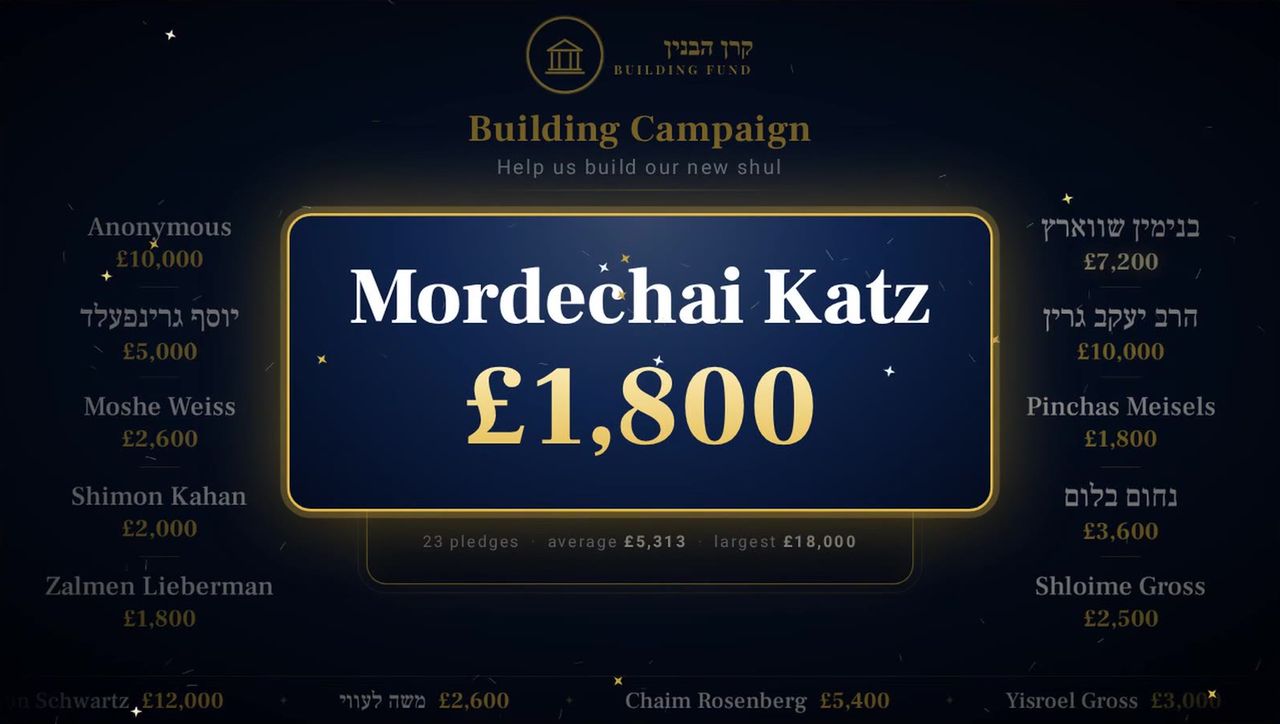
Every pledge goes up on the big screen the moment it's called. The name pops up, the total climbs, and when you hit the target the room erupts.
- English, Hebrew & Yiddish names
- Your own logo & colours
- Works with no wifi
- Unlimited pledges
- 1 laptop + any projector or TV
- 0 installs — opens in Chrome or Edge
- ∞ pledges, no limits
- 100% offline once opened
Two-minute walkthrough
Real footage of the control laptop and the big screen — typing pledges, the pop-up, confetti, hold & reveal, themes and export.
Sound on for the narration · 2:05
Everything the appeal needs, nothing it doesn't
One person types on the laptop. The whole room watches the screen.
The big-screen pop-up
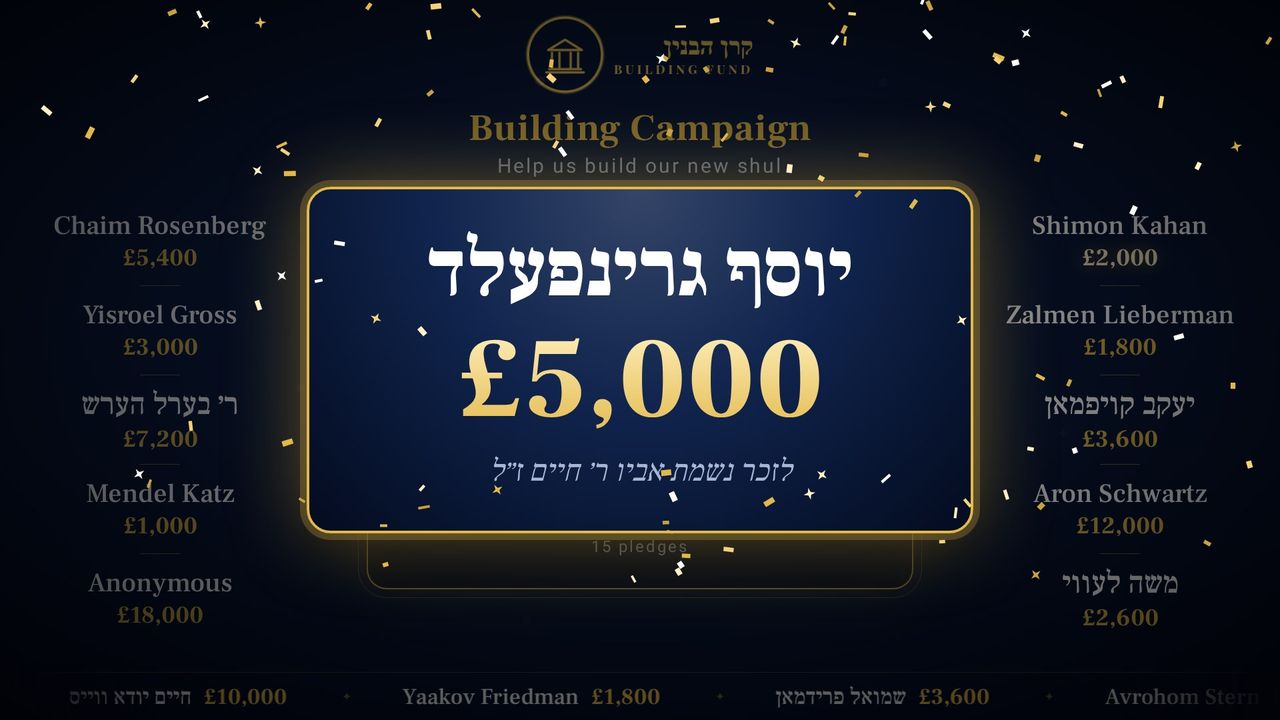
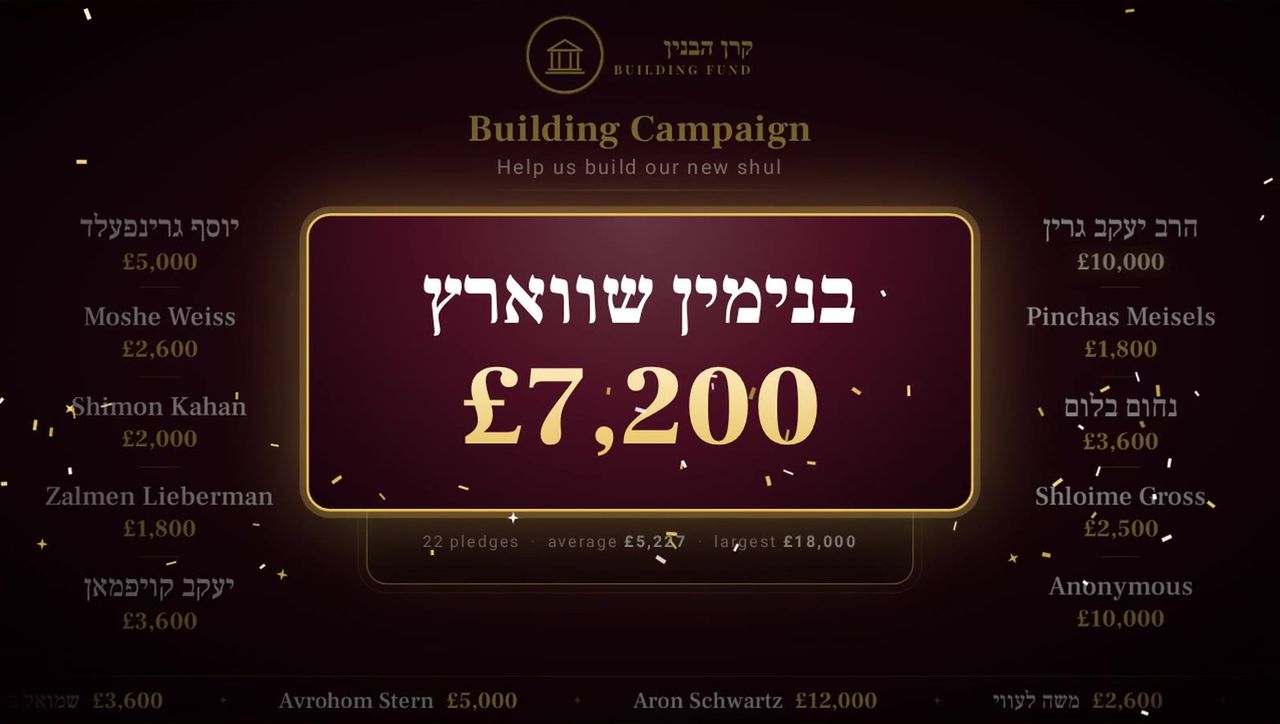
Type a name and amount, press Enter — the name appears huge in the centre of the screen, then flies into its place while the total counts up.
- Names in English, אידיש or עברית, with an optional dedication line
- “Anonymous” at one click
- Total in a gold frame, with progress to your target
Confetti & “Target reached!”
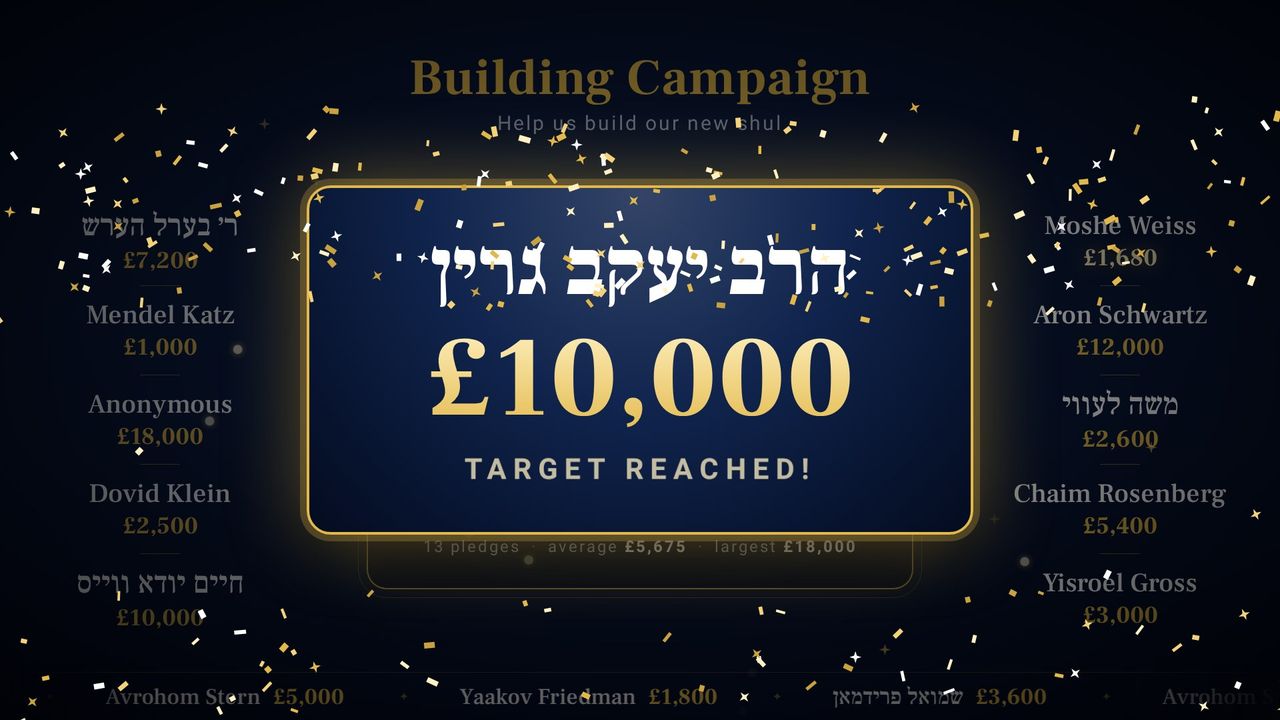
Gold confetti on every pledge — or only on the big ones. The moment the total crosses the target, a bigger burst and “TARGET REACHED” fill the screen.
- Confetti for every pledge, only from £X (e.g. £10,000), or off
- Optional “big celebration” level for the largest pledges
Names that stay put
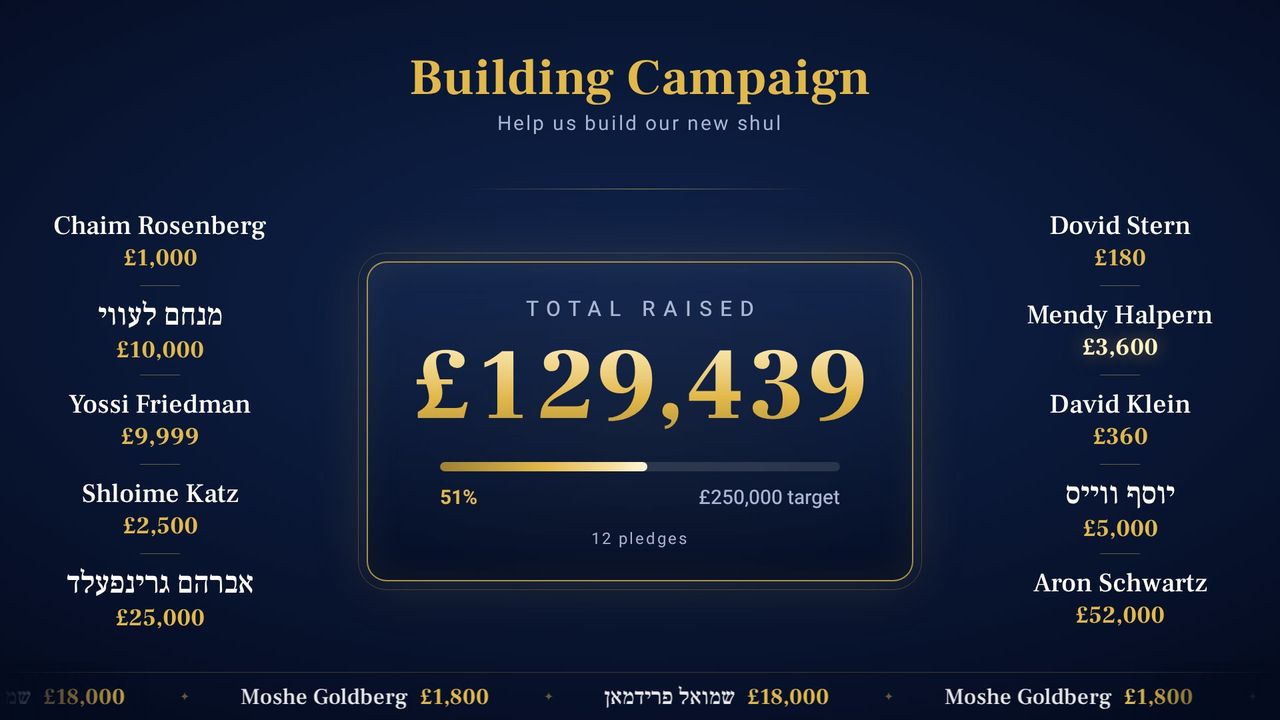
The first five pledges fill the right-hand column, the next five fill the left. Nobody jumps around. From the eleventh pledge, the newest gently replaces the oldest — and everyone keeps scrolling along the ticker at the bottom.
- Ten names on screen, all the rest in the ticker
- Optional line under the total: pledges · average · largest
Guest list & internal notes
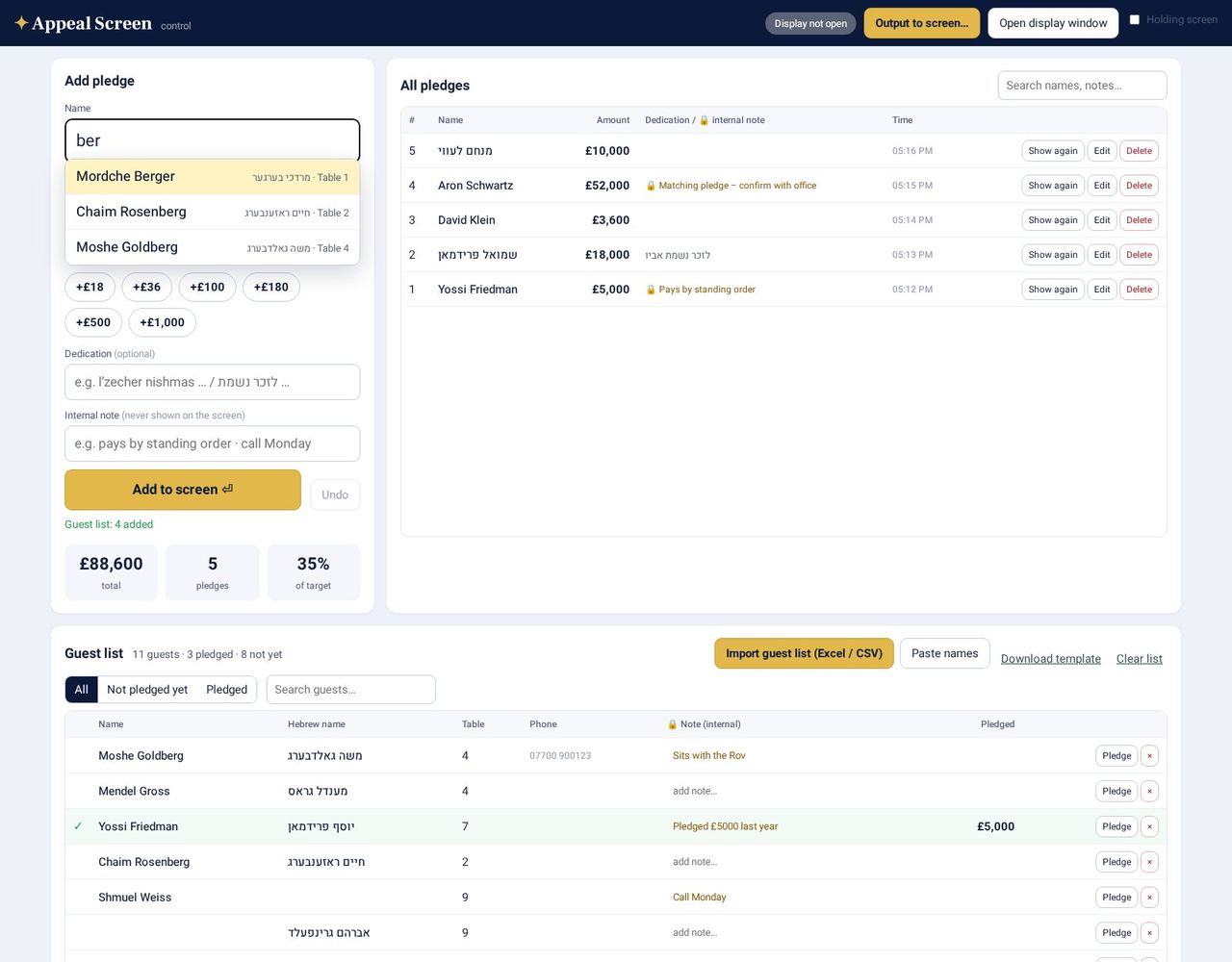
Upload your guest list from Excel or CSV, or paste the names. On the night, type two or three letters, pick the name, enter the amount — done. You can see at a glance who hasn't pledged yet.
- Internal notes on every guest and every pledge — 🔒 never shown on the screen
- Hebrew names, tables and phone numbers kept with each guest
Hold & reveal
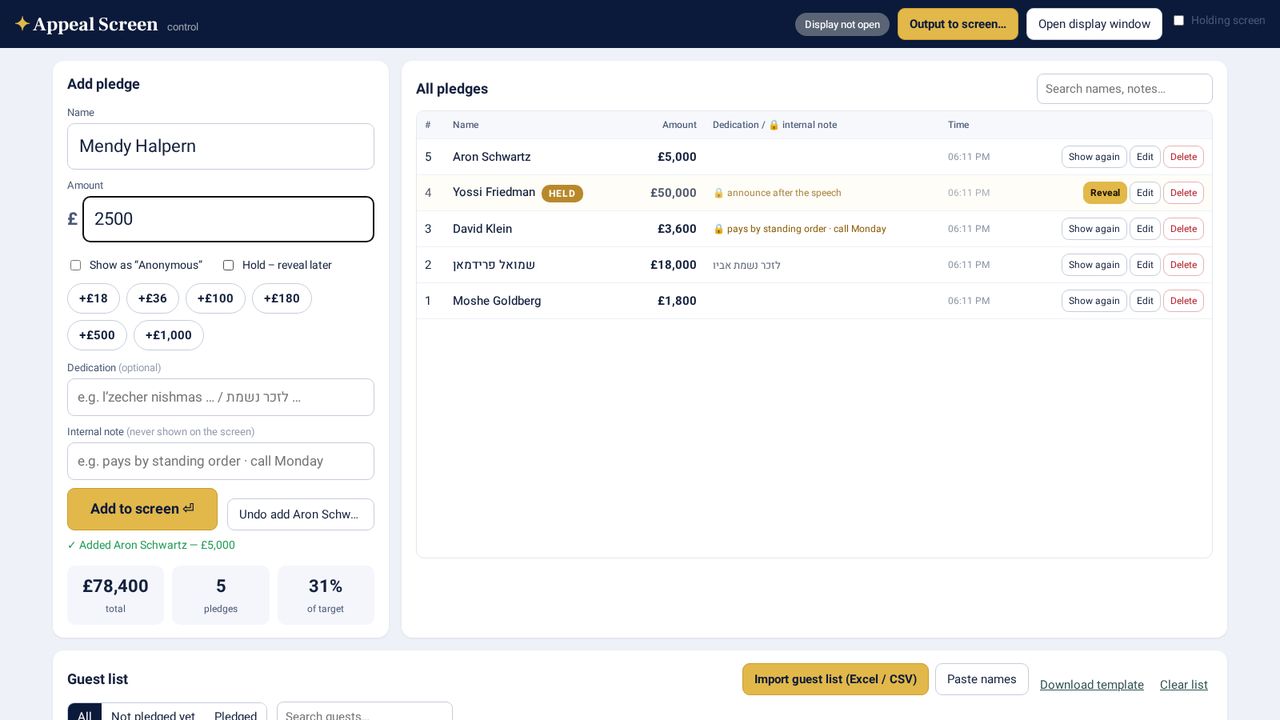
Got a big pledge you want to announce at the right moment? Tick “Hold”. It's saved on the laptop but kept off the screen and out of the total — until you press Reveal and it pops up for the whole room.
- Edit, delete and undo any pledge, live
- “Show again” replays a name on the big screen
- Holding screen with just your logo before the appeal starts
Your logo, your colours
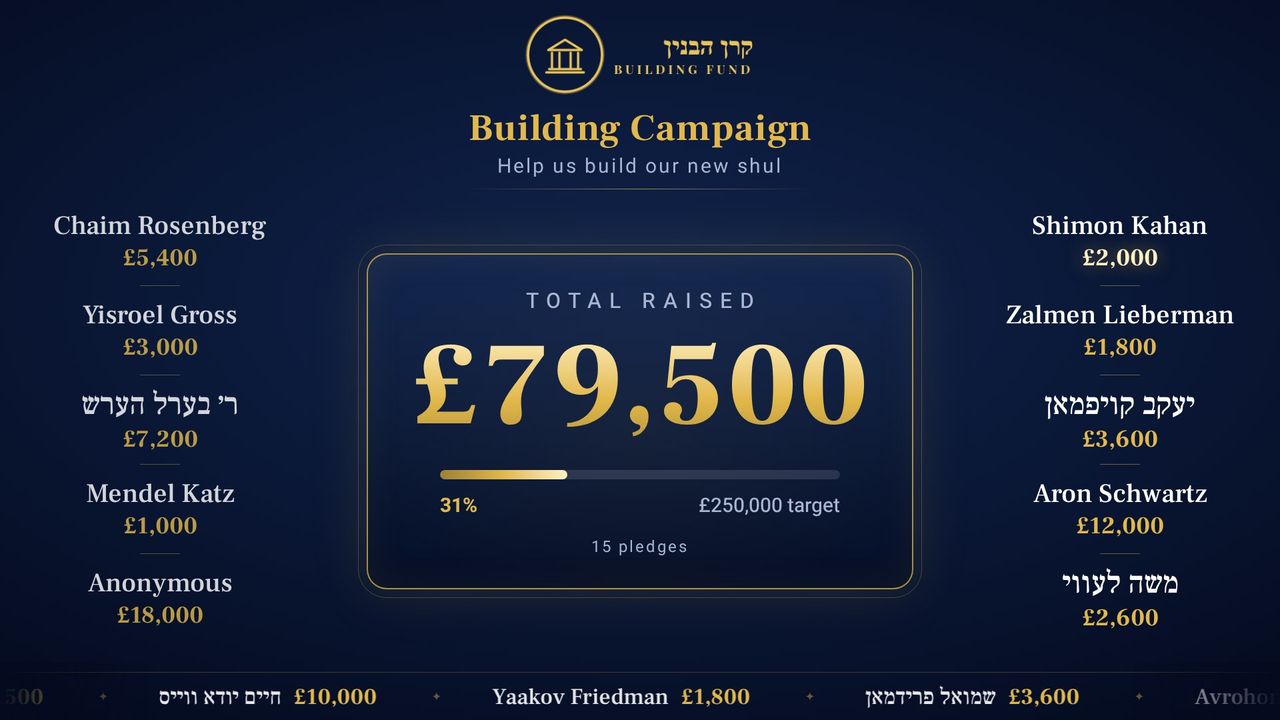
Every event gets its own look: your organisation's logo across the top, your campaign title, your background — and a choice of elegant themes.
- Navy, burgundy, emerald, black, silver, royal blue and white themes
- Upload a logo or a full background image
- £, $ or € and your own target
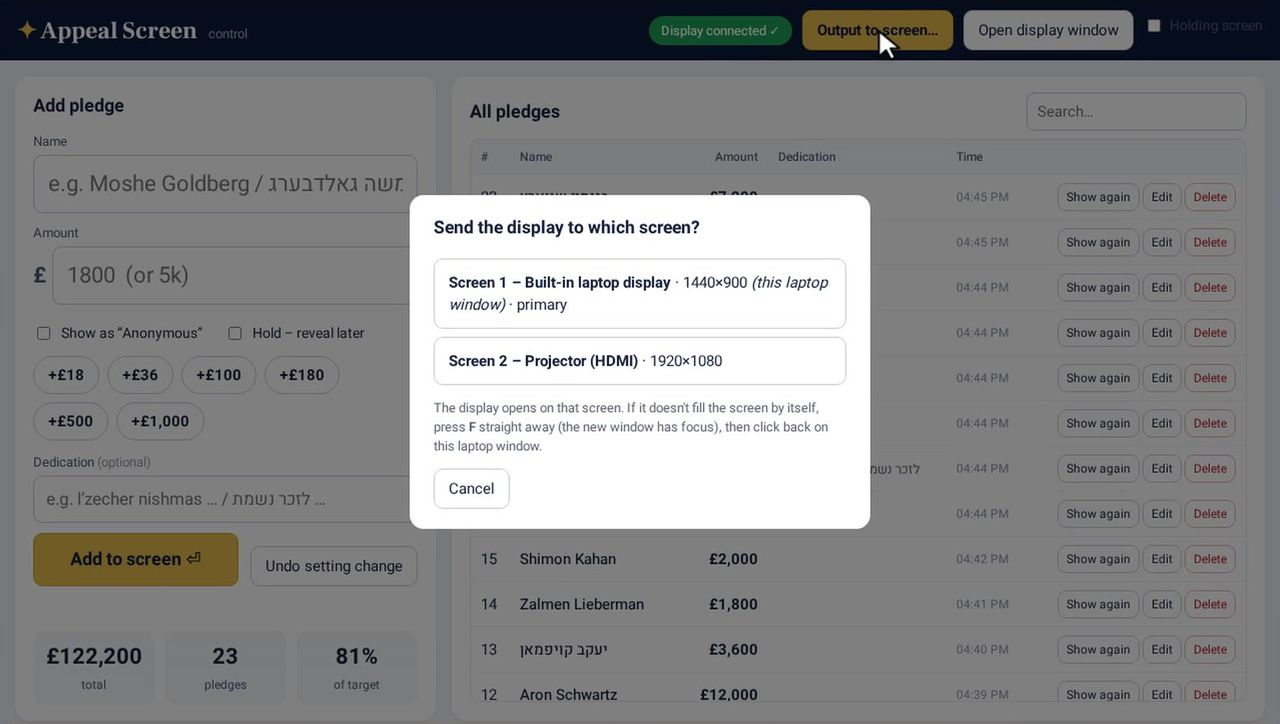
Output to the projector
One button sends the big screen to the projector or TV. The laptop keeps the controls.
Works offline
Hall wifi down? Once it's opened, Appeal Screen keeps running with no internet at all. Nothing waits on a server.
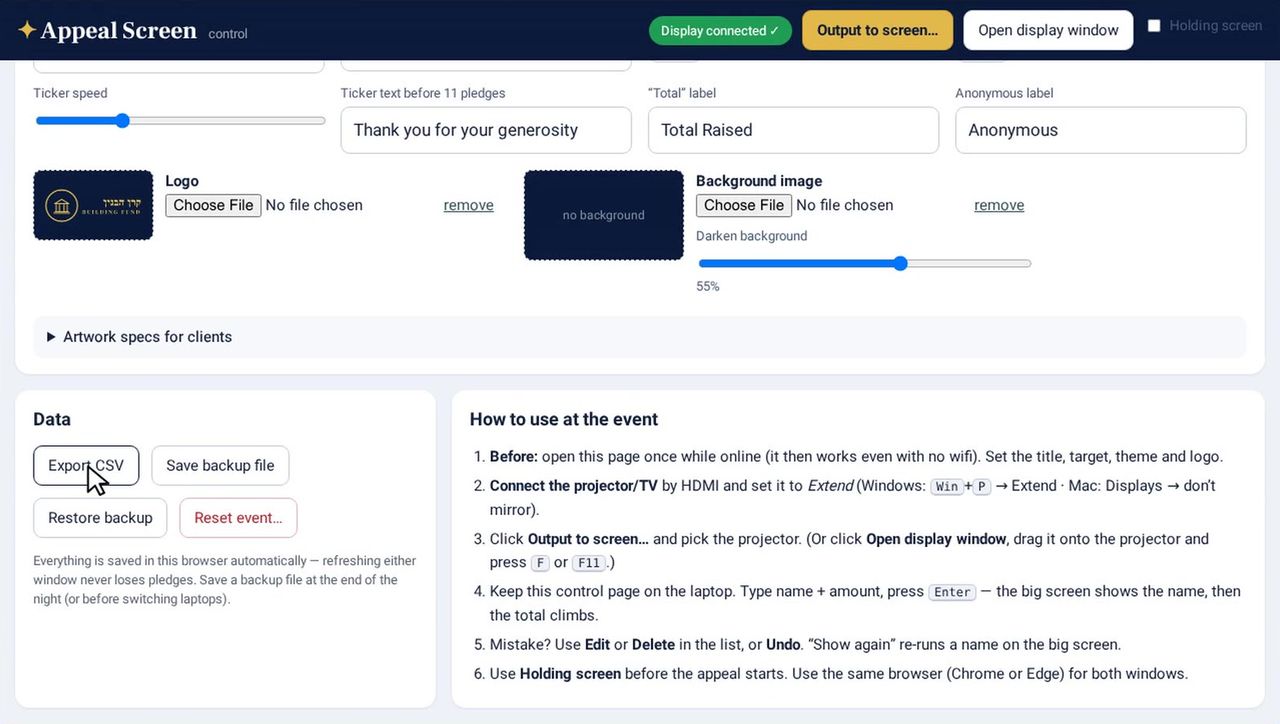
CSV export & backup
At the end of the night, export every pledge (with notes and status) to Excel in one click. Back up and restore the whole event.
Quick amounts
Buttons for £18, £36, £180, £1,000 and more — they add up, so 1,000 + 500 + 180 is three taps.
Hebrew & Yiddish ready
Right-to-left names display beautifully, side by side with English ones, in proper Hebrew typefaces.
Fix mistakes live
Wrong amount? Edit it and the screen corrects itself. Undo is always one click away.
Three steps to a live appeal
Set up your event
You get your own private login. Add your logo, campaign title, target and colours — and upload the guest list if you have one.
Connect the screen
On the night, open your control link on the laptop and press “Output to screen”. The big screen goes up on the projector.
Type the pledges
As each pledge is called, type the name and amount and press Enter. The room watches the total climb. Export everything at the end.
Frequently asked
What do we need on the night?
A laptop (Windows or Mac) with Chrome or Edge, and a projector or TV connected to it. That's all — nothing to install.
Does it need internet at the hall?
No. Open your link once beforehand and Appeal Screen keeps working with no wifi at all. Pledges are stored on the laptop running the event.
Can it show Hebrew and Yiddish names?
Yes — type names in English, Hebrew or Yiddish (or both), with an optional dedication line such as לזכות or “in memory of”.
Can we use our own logo and colours?
Yes. Each event has its own logo, title, background and colour theme, set up in a few minutes.
Is there a limit on the number of pledges?
No limit. Ten names stay on the screen at a time and everyone scrolls along the ticker at the bottom.
What if we type a mistake?
Edit or delete any pledge and the screen updates immediately. There's an Undo button too.
Can a pledge be kept off the screen?
Yes. “Hold” saves it without showing it, so you can reveal it at the right moment — or show it as Anonymous.
Who can see our donors and notes?
Your event's data lives in the browser on your laptop, separately from every other event. Internal notes are never shown on the big screen. At the end you can export to Excel and clear the laptop.
Can we see it working first?
Yes — watch the two-minute walkthrough above. Then request access and we'll set you up with your own private login and show you around.
Book Appeal Screen for your dinner
Tell us about your organisation and your event date. We'll get back to you, set up your private login, and help you get your logo and guest list ready.